Blog
How to export a comic for vertical scroll and for print
PNG pages, PDF, CBZ or webtoon slices: which export suits a vertical-scroll platform, a comic reader app or a printer, and how to set each one up.
Published September 23, 2026 · 7 min read
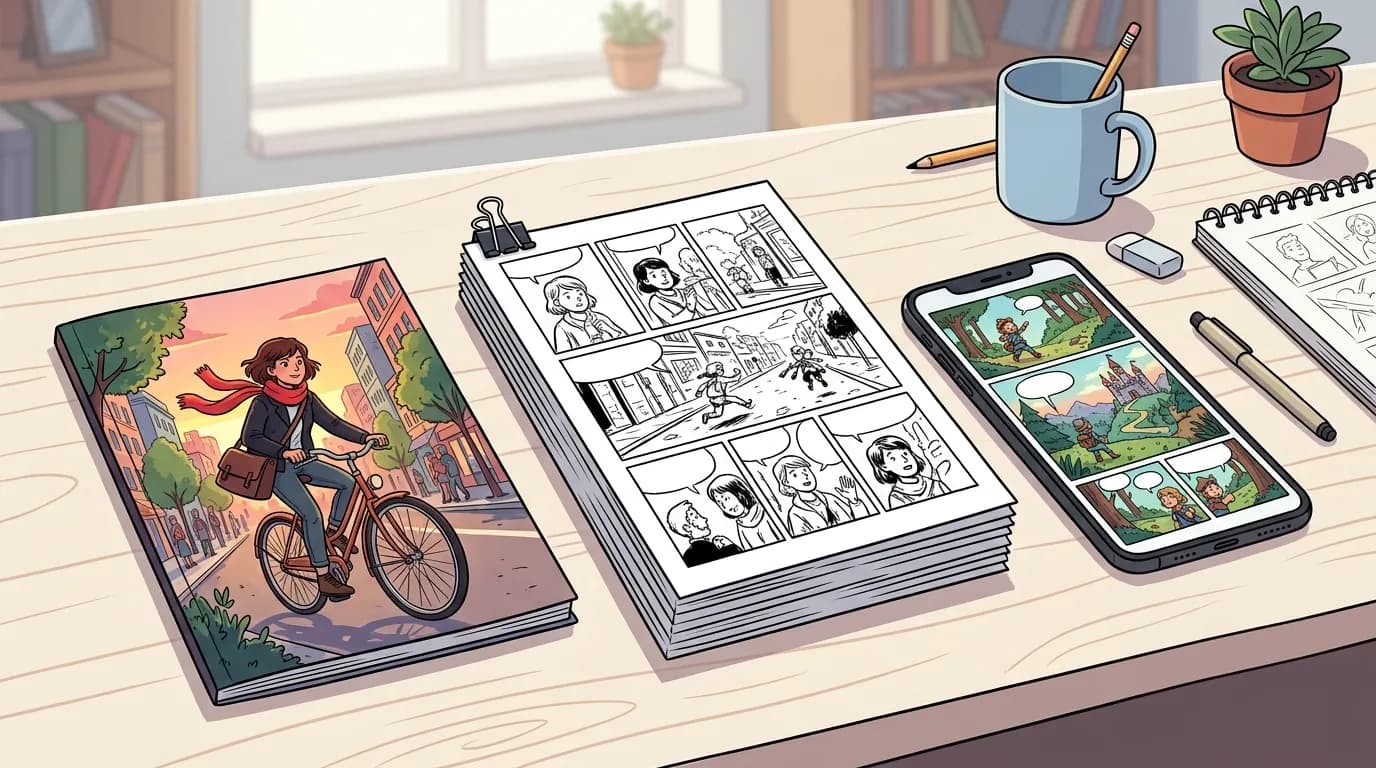
A finished chapter still has to reach its readers in the shape each destination expects. Vertical-scroll platforms want a stack of narrow images, comic reader apps want an archive, and printers want a PDF. MangaMade makes all of them from the chapter’s export page, and exporting is free on every plan: it never uses credits.
Four formats for four destinations
- PNG pages: one image per page in a ZIP file, numbered 001.png, 002.png and so on in reading order. It is the most flexible option, and the right one for your own archive.
- PDF: one page per sheet, for reading on screen, sending to an editor or printing. A manga opens right to left.
- CBZ: the comic book archive that comic reader apps open, with the reading direction stored inside.
- Webtoon strip: the pages stacked into one strip 800 px wide, cut into slices ready for upload and delivered in a ZIP file.
An export covers every page of the chapter or a range you choose, and every panel on those pages must be drawn first; the export page tells you when some still are not. A finished export stays in the chapter’s list of exports, where you can download it again whenever you need it, and a download link you receive by email expires after 24 hours.
Exporting for vertical-scroll platforms
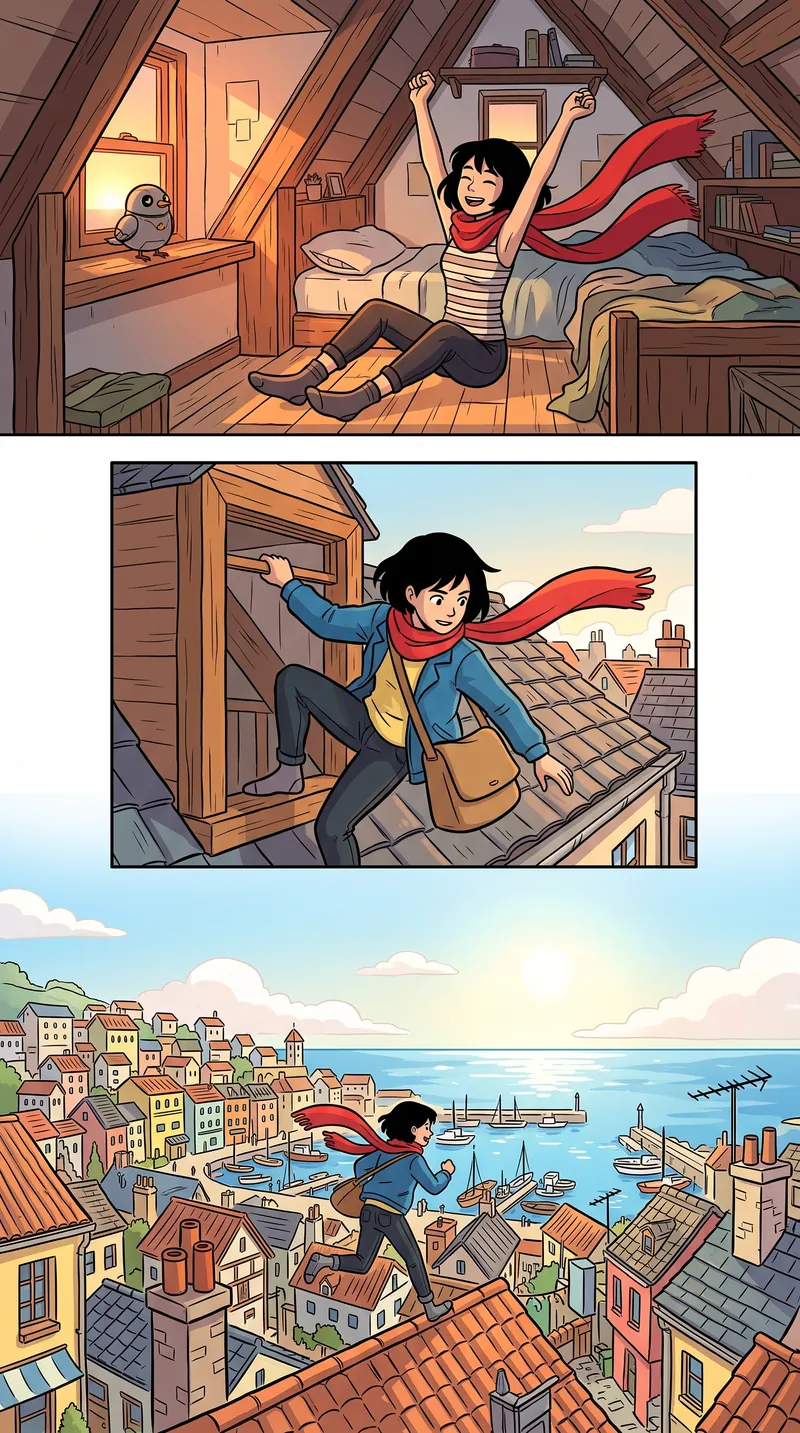
Vertical-scroll comics are read mostly on phones, as one long strip per episode. Each platform that hosts them sets its own image size: a common requirement is 800 px wide with each image at most 1280 px tall, while other platforms ask for a different width or set no height limit. Limits on file type, file size and the number of images per episode vary too, so read the platform’s upload guidelines before you publish.
Slice width and height
The webtoon export scales every page to 800 px wide, stacks the pages from top to bottom and cuts the result into slices of equal height, at most 1280 px each by default; the last slice takes whatever remains. If a platform or your own website prefers shorter images, set the slice height anywhere from 400 to 1280 px. Slices are cut at equal heights rather than at panel borders, so a cut can cross a panel, but vertical-scroll platforms generally show the images edge to edge, so the cut does not show. Upload the slices in their numbered order.
Start the series in the webtoon format
Any chapter can be exported as a strip, but a manga or comic page in a strip is still a page: it becomes an 800 × 1200 px block with panels side by side, which is hard to read on a phone. For a true vertical comic, choose the webtoon format when you create the series. Its layout templates stack full-width panels with tall gutters between them, drawn for scrolling, and its strip exports at its natural width of 800 px.
Exporting for comic reader apps
Comic reader apps on phones, tablets and computers open CBZ files: a ZIP of numbered page images that the app presents as a book. The MangaMade CBZ also holds a small metadata file with the series title, the chapter title and number, the page count, the language and whether the chapter reads right to left. Apps that read this file open a manga the right way round, turning pages from right to left.
If the app you use prefers plain images, the PNG export holds the same pages with the same numbering, so they sort in reading order anywhere.
Exporting for print
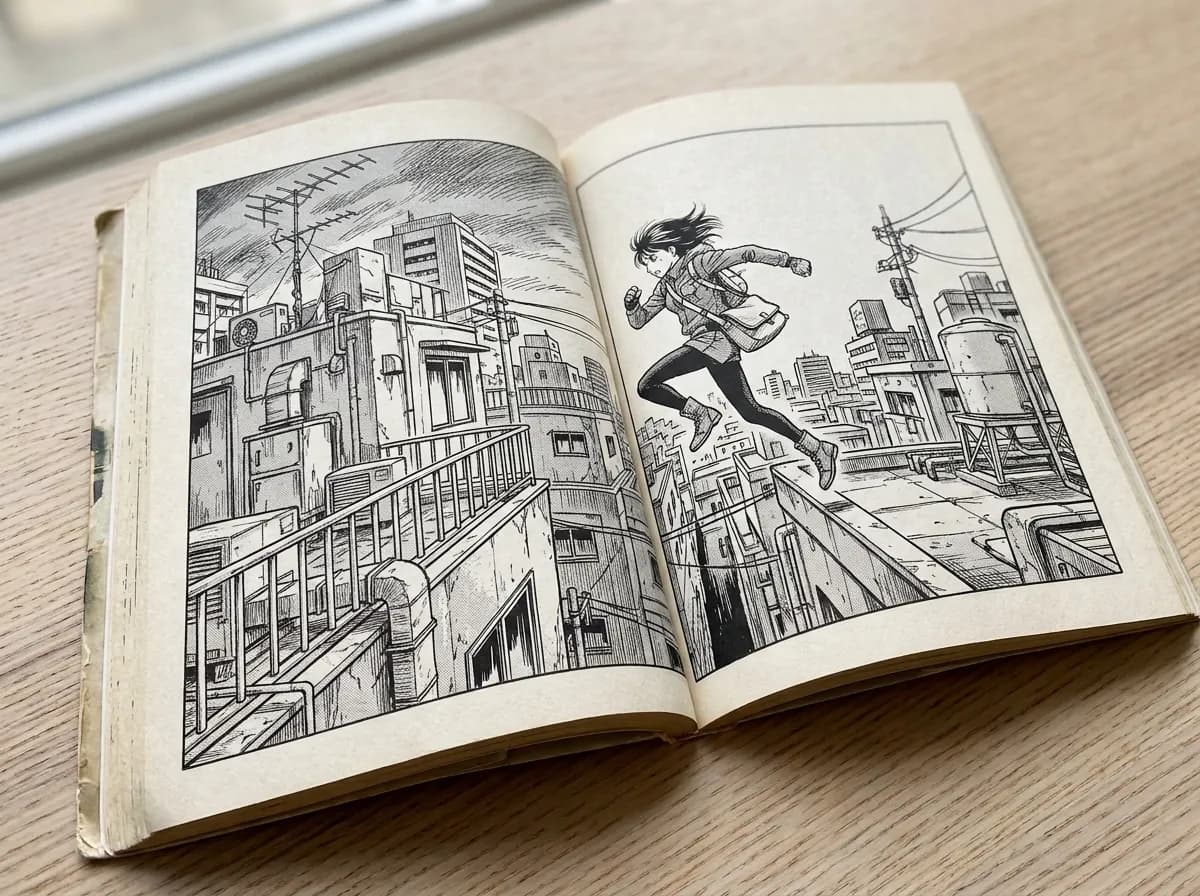
The PDF export is the file to send to a printer or a print-on-demand service. Manga and comic pages are laid out on 6 × 9 inch sheets (432 × 648 points), one page per sheet, with each page embedded as a high-quality JPEG. A right-to-left series gets the right-to-left reading preference, so PDF readers that honour it show two-page spreads the manga way, while page 1 stays the first page of the file. A webtoon PDF keeps the 6 inch width and each page’s own height.
Resolution and print quality today
Be realistic about resolution. MangaMade composes manga and comic pages at its draft size, 1400 × 2100 px, and exports them at that size. On a 6 × 9 inch sheet that is about 233 pixels per inch, below the 300 that print services commonly recommend: fine for proofs, zines and reading copies, but short of what professional printing expects. At 300 pixels per inch the same page covers about 4.7 × 7 inches (11.9 × 17.8 cm). Print upscaling is not available in MangaMade yet.
- Order a printed proof before any print run: colours and line weights look different on paper.
- The files are RGB. Many printers convert them to CMYK, which can dull saturated colours; black-and-white pages are the safest.
- Pages keep a white outer margin, so no art runs to the edge. If a printer’s template asks for bleed, add it in their tool or in a layout program.
- A manga bound as a book opens from the right. Tell the printer where the spine goes, because many print services assume a left-to-right book by default.
Page ranges, the trial watermark and share links
Page ranges
Export every page or pick a range, from page 3 to page 8 for instance. A range helps when a platform wants a long chapter split into two episodes, when an editor asks for a sample, or when you fixed two pages and only need those again.
The trial watermark
Exports made without a paid plan, on the free trial or with top-up credits alone, carry a small MangaMade mark in the bottom outer corner of each page, which is the bottom left on right-to-left pages. Once the workspace is on a paid plan, pages are composed again without it. Files exported before that keep their mark, so export again after upgrading. The acceptable use policy asks you not to crop or remove the mark: a paid plan is the way to lose it.
Share links
To show a chapter without sending files, create a read-only link. Anyone who has it can read the chapter in a browser without an account: manga pages turn from right to left, and a webtoon reads as one vertical strip. A link expires after 1, 7, 30 or 90 days, as you choose (30 by default); you can revoke it at any time, and the export page shows how many times it was opened. It is shown only once, when you create it, so copy it straight away.
The reading page always shows the latest version of each page, so a fix you make later appears without a new link, and share links are marked so that search engines leave them out. That makes them a good fit for beta readers, editors and friends.
Exports cost nothing, so export early and often: a PDF proof after the first pages, a strip to check how the chapter scrolls on a phone, and the final files once the lettering is done.
Questions this answers
- What size should webtoon images be?
- A common requirement is 800 px wide and at most 1280 px tall per image, though some platforms ask for another width. MangaMade’s webtoon export produces 800 px slices up to 1280 px tall by default, and the slice height can be set from 400 to 1280 px. Check your platform’s own limits on width, file size and image count as well.
- Can I print a manga exported from MangaMade?
- Yes, from the PDF export: 6 × 9 inch pages, with a right-to-left reading preference for manga. Pages are exported at the 1400 × 2100 px draft size, about 233 pixels per inch at that size, and print upscaling is not available yet, so order a proof first.
- What is a CBZ file?
- A comic book archive: a ZIP of numbered page images that comic reader apps open as a book. The MangaMade CBZ adds a metadata file with the titles, page count, language and reading direction, so a manga opens right to left.
- Do exports cost credits?
- No. Exports and share links are free on every plan, including the trial. Exports made without a paid plan carry a small watermark; once you are on a paid plan, export again and the pages come without it.
- Can I export only some pages of a chapter?
- Yes. Choose a page range on the export page, for example pages 3 to 8. Every panel on those pages must be drawn before the export can start.
Make your next chapter
Turn your story into lettered pages: model sheets for your cast, AI-drawn panels and exports in PNG, PDF, CBZ or webtoon.
Start free